7.3 Changing Your Preference Settings
|
|

EZM Web includes a section where you can adjust settings
that affect how the program works to suit your company’s needs. To adjust the preferences, click on the Preferences
link under the Subscription drop-down list on the left side of the
screen:
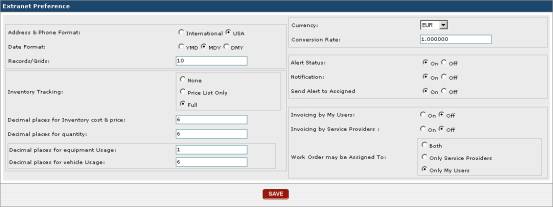
Fig. 7.3-1 – Screen where you change your login
information
At this screen, you can change your preference
settings. The function of each of these
settings is as follows:
o
Address & Phone Format: If your
company is based in the United States, simply leave USA selected. Selecting
International allows users to enter much longer phone numbers and addresses
with letters in the zip code. To select the option you desire, mark the circle
next to the desired option by clicking in it.
o
Date Format: This setting affects the
display of dates throughout the application. Depending on the option you
select, dates will be displayed with the year followed by the month then the
date, with the month followed by the day then the year, or with the day
followed by the month then the year. Again, to select the option you desire,
mark the circle next to the desired option by clicking in it.
o
Records/Grids: This setting lets you
specify how many items per page will show on the various lists throughout the
EZM Web application, such as lists of equipment, inventory items, scheduled
maintenance, etc. For example, if you set Records/Grids to 15, a maximum of 15
items will be displayed per page. If you would like to view the next 15 items,
you will have to select the next page, and for the next 15 items, the page
after that, and so on.
o
Inventory Tracking: This
setting lets you select the level of inventory tracking you want to use. Selecting None will not track any
inventory use. Selecting Price List Only will track and record inventory
prices, but not inventory use. Selecting Full will track and record all
inventory prices and transactions, including when a piece of inventory is used
in a work order.
o
Decimal Places for Inventory Cost & Price: This
allows you to specify how many decimal places the program will keep track of in
the price for inventory items. To change this setting, click on the box
containing the value, and type in the desired value.
o
Decimal Places for Quantity: This
allows you to specify how many decimal places the program will keep track of in
the quantity for inventory items. For example, if you want EZM Web to track
inventory quantities to the nearest tenth, you would put a "1" in
this box. The program would then display and store quantities for inventory
items such as 1.2 quarts of oil, or 15.0 bearings.
o
Decimal Places for Equipment Usage: This
setting allows you to specify to how many decimal places the program will keep
track of equipment usage hours. For example, if you want EZM Web to keep track
of equipment usage hours to the nearest thousandth, you would put a
"3" in this box. Next is the setting for Decimal places for equipment
Usage. This setting allows you to specify to how many decimal places the
program will keep track of equipment usage hours. For example, if you want EZM
Web to keep track of equipment usage hours to the nearest thousandth, you would
put a "3" in this box.
o
Decimal Places for Vehicle Usage: This
setting works similarly to the Decimal places for equipment Usage, but
it applies to vehicle usage instead of equipment usage.
o
Currency and Conversion Rate:
These two options must be used in conjunction with each other. The Currency setting allows you to
specify what currency you would like all the monetary amounts to be displayed
in throughout the application. If you
enter a value into the Conversion Rate box, all of the monetary values
you have entered into the program, such as those for inventory item costs, will
be converted to the new currency using the value you entered into the Conversion
Rate box.
o
Invoicing by My Users: If this
is set to ON, then you and other users of your account will be able to
invoice customers through EZM Web.
Setting it to OFF disallows you and other users of your account
from invoicing customers.
o
Invoicing by Service Providers: If this
is set to ON, then service providers can invoice you through EZM
Web. Setting it to OFF disallows
service providers from invoicing you.
o
Work Order May Be Assigned To: This
affects the list of users to select from when assigning a work order. For
example, you may want to assign all your maintenance to vendors / Service
Providers and not have members of your company displayed on the list of
users to select from because you will never be assigning maintenance to them.
In this instance you would select Only Service Providers. Or you may
select Only Users if you only want members of your company to appear on
the list of users to whom you can assign work orders.
Once you have chosen your desired settings, then click on
the SAVE button to save your changes.
If you have changed your mind and do not want to make any changes to the
preference settings, then simply exit out of this area of EZM Web without
clicking on the SAVE button.