3.7 Vehicle Maintenance Alerts
|
|

There is also a place in EZM Web
where you can view all of the maintenance for vehicles that is due today as
well as all vehicle maintenance that is past due and any expiring vehicle and
drivers’ licenses. This is called the
“Vehicle Maintenance Alerts” screen.
This screen will alert you to what maintenance is due so that you can
create a work order for it. (See
section 3.5.2 Creating Vehicle Work
Orders.) To get to the Vehicle
Maintenance Alerts screen, click on Vehicle under the Alerts drop-down
list on the left side of the screen:
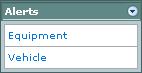
Fig 3.193 – “Vehicle” link under the “Alerts” drop-down
list
After clicking on the Vehicle
link, you will be taken to the following screen:
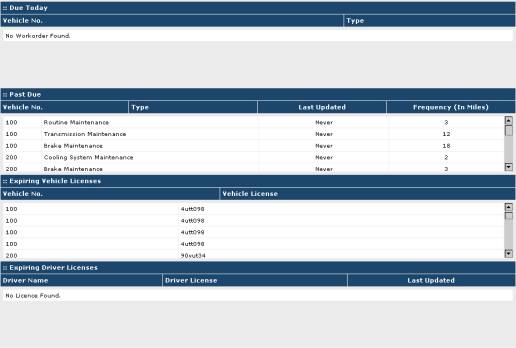
Fig 3.194 – Vehicle alerts screen
Here you can see all of the
maintenance for vehicles that is due today as well as all vehicle maintenance
that is past due and any expiring vehicle and drivers’ licenses. For each maintenance event that is due
today, the vehicle number of the vehicle for which the maintenance is scheduled
is shown along with the type of the maintenance. For each maintenance event that is past due, the internal control
number of the vehicle is shown with the type of the maintenance, and the
frequency of the maintenance in both days and usage units is shown. The expiring vehicle licenses along with the
expiring driver licenses are also shown here.
You can also print out a report
showing all of the maintenance that is due today, maintenance that is past due
or a report showing expiring vehicle licenses or expiring drivers’
licenses. You can also print a report
consolidating all four of these reports into one. You can print these reports using the Reports box on the
right side of the screen:
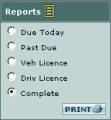
Fig 3.195 – “Reports” box where you select what report you
want to print
Click in one of the circles
called Due Today, Past Due, Veh License, Driv License
or Complete and then click on the PRINT button in the lower right
corner of the box to print the desired report.