5.2 Creating Work Orders from Customer Requests
|
|

To create a work order from a customer request, first you
need to go to the main customer request screen (see section 5.1 Viewing Open Customer Requests for
how to get here). In the list of
requests, find the right-most column containing small buttons:
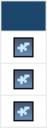
Fig 5.2-1 – Column with small buttons used to create a WO
from a customer request
Click on the small button corresponding with the customer
requests from which you want to create a work order. Doing so will taken you to a screen similar to the following:
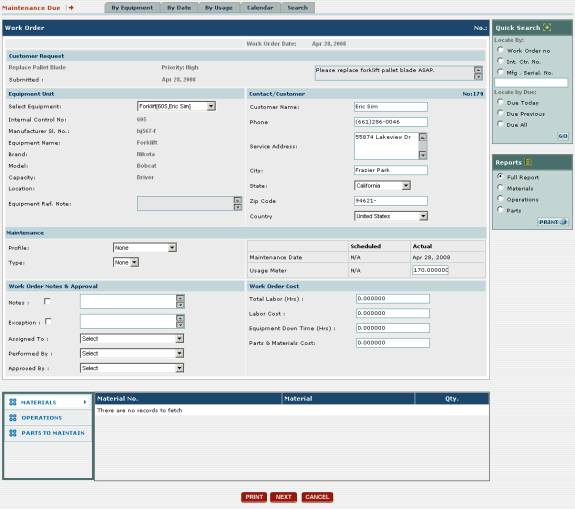
Fig 5.2-2 – Screen where you create a work order from a
customer request
Here you fill in the details of the work order that you
are creating for the customer request.
A full discussion of this screen is outside of the scope of this
chapter. See sections 2.5.2 Creating Equipment Work Orders
and 3.5.2 Creating Vehicle Work Orders
for a complete discussion on creating equipment and vehicle work orders.
After you have filled in all of the information for the
work order and saved it, you will be taken back to the main customer request
screen. The status of the request for
which you created the work order will have changed from “Open” to “Work-in
Progress” to indicate that a work order has been created for it.